Why Your Stream Looks Fine But Performs Terribly (And How to Actually Fix It)
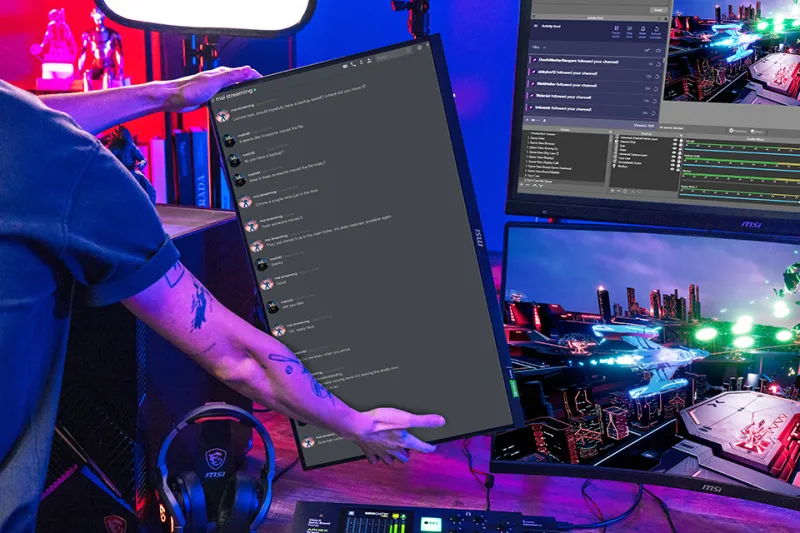
Photo: person troubleshooting computer streaming setup with multiple monitors and cables, via storage-asset.msi.com
Let's be honest about something: the streaming advice landscape is flooded with gear recommendations. New microphone, new capture card, new CPU—every forum thread eventually points you toward buying something. And sometimes that's the right call. But most of the time, the real culprit behind choppy streams, viewer drop-off, and stalled growth isn't hardware at all. It's a configuration problem hiding in plain sight.
The frustrating part is that your stream might look fine on your end. Preview looks sharp. Audio sounds clean. You hit Go Live feeling good—and then the VOD reveals a mess of dropped frames, inconsistent bitrate, and moments where the whole thing just fell apart. If that cycle sounds familiar, this one's for you.
Stop Guessing and Start Measuring
The single biggest mistake streamers make when troubleshooting is skipping straight to solutions without identifying the actual problem. You can spend $400 on a new router and still have the same issues if the router wasn't the bottleneck to begin with.
Start with data, not assumptions. Most broadcasting software—OBS Studio, Streamlabs, vMix—has a built-in stats panel that shows you dropped frames, render lag, and encoding lag in real time. Open it during your next stream and actually watch it. Specifically, look for these three numbers:
- Dropped frames (network): If this percentage is above 1-2%, your connection to the platform is the weak point.
- Encoding lag / skipped frames: If this is climbing, your CPU or GPU can't keep up with your encoder settings.
- Render lag: If this is high, your GPU is struggling to composite your scene before it even gets to the encoder.
These three indicators point to three completely different parts of your setup. Fixing the wrong one wastes time and money.
The Bandwidth Problem (And Why It's Trickier Than You Think)
Internet speed is usually the first thing people check—and they usually check it wrong. Running a speed test while nothing else is happening on your network tells you the theoretical ceiling, not what your stream actually has access to at 9pm on a Tuesday when your roommate is watching Netflix and your smart TV is pulling a firmware update.
A more useful test: run a speed test while streaming, and watch the network dropped frames counter in your stats panel at the same time. Also check your upload consistency, not just peak speed. A connection that hits 50 Mbps in bursts but drops to 8 Mbps intermittently is worse for streaming than one that holds a steady 15 Mbps all day.
For Twitch, YouTube Live, and most major US platforms, a 1080p60 stream at decent quality needs around 6,000-8,000 Kbps of stable upload. Not peak—stable. If you can't guarantee that, dropping to 720p60 at 4,500-5,000 Kbps will actually produce a better viewer experience than a 1080p stream that stutters.
If bandwidth is genuinely the issue, your options are: upgrade your ISP plan (often the cheapest fix if a faster tier is available in your area), switch to a wired ethernet connection if you're currently on Wi-Fi (this alone fixes a surprising number of problems), or lower your output bitrate to match what your connection can reliably sustain.
Encoder Settings: Where Most Streamers Leave Performance on the Table
This is the area where misconfiguration is most common and most consequential. The default encoder settings in most software are conservative—they're designed to work on a wide range of machines, not to get the best out of yours.
If your machine has a modern NVIDIA GPU, you should almost certainly be using NVENC rather than x264 for encoding. NVENC offloads encoding from your CPU to a dedicated chip on the GPU, which typically cuts CPU usage in half or better with comparable or superior output quality. AMD users have a similar option with AMF. Staying on x264 out of habit when hardware encoding is available is one of the most common bottlenecks we see.
For x264 users who need to stick with CPU encoding: the preset matters enormously. Running x264 at the "medium" preset will tank your CPU. Drop it to "veryfast" or "superfast" and you'll likely see encode lag disappear entirely, with minimal visible quality difference at streaming bitrates.
Hardware Bottlenecks by Budget Level
If your stats genuinely point to hardware limitations, here's a realistic breakdown of where to put money depending on what you're working with:
Under $100: More RAM is often the cheapest meaningful upgrade. If you're running a gaming stream with 8GB of RAM, upgrading to 16GB can noticeably reduce scene lag and stuttering. Also worth trying: closing background apps and browser tabs before going live, and setting your encoder process priority to "above normal" in OBS.
$100-$300: A dedicated streaming PC setup—even a used mid-range desktop running OBS while your gaming rig handles the game—can be more effective than upgrading a single machine. Alternatively, an NVIDIA RTX card (even a budget 3060) unlocks high-quality NVENC encoding and frees your CPU for everything else.
$300+: At this level, you're looking at meaningful CPU upgrades, a second machine dedicated to encoding, or a hardware encoder like the Elgato 4K60 Pro or AVerMedia Live Gamer series if capture workflow is your sticking point.
Platform Configuration Is the Sneaky One
Finally—and this gets overlooked constantly—make sure your platform settings actually match your encoder output. If you're pushing a 1080p60 stream to a channel that hasn't been approved for 1080p60 on Twitch, or you've set your YouTube stream key to a different resolution than your software output, you're introducing unnecessary transcoding overhead that degrades quality.
Check your ingest server selection too. Most platforms let you choose which server you connect to, and auto-selection isn't always optimal. Tools like Twitch's bandwidth test or third-party utilities like PingPlotter can show you which ingest server gives you the lowest latency and packet loss from your specific location.
The point here isn't that gear doesn't matter—it does, eventually. But before you go down the upgrade rabbit hole, spend an hour actually diagnosing what's happening. Nine times out of ten, the answer is already visible in your stats panel, and the fix costs nothing at all.